for clubs and group leaders · the guide
Bring your group to Plus1, step by step
From downloading the app to your first ride, one screen at a time: what each page does and what to tap. Then how to bring your riders across from Facebook or WhatsApp without losing anyone on the way.
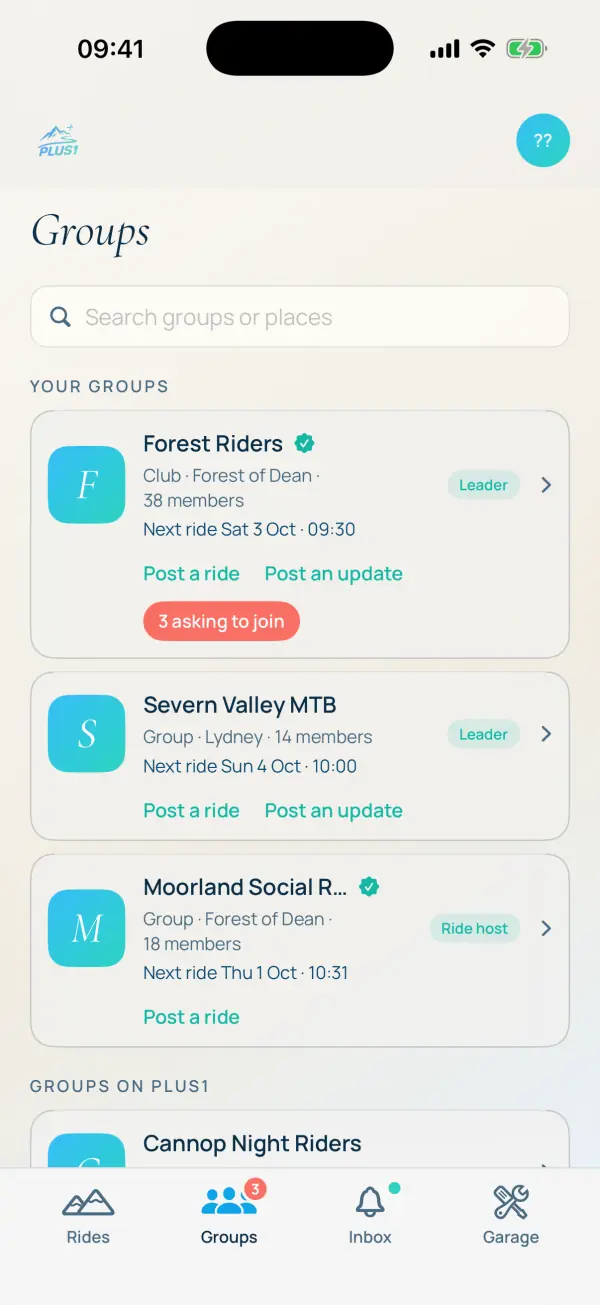
A note on versions. The screens here are from Plus1 1.10, the update that's coming to the App Store and Google Play soon. Most of what's shown works in the version you can download today. Where something needs 1.10, it's marked 1.10. If you don't see it yet, it's on its way.
Every screen in this guide uses a made-up group, Forest Riders, and made-up riders. Nothing here is a real person.
- Get the app
- Sign up
- Start your group
- Or let us set it up for you
- A tour of your group page
- Posting rides
- Join requests and members
- Ride hosts and areas
- Hosting or guiding: which terms
- Rider details
- Who's coming, and the export
- Posting an update
- Sharing your group link
- After the ride
- Moving over from Facebook or WhatsApp
- Your website and calendar
step 1 get the app
Plus1 is free on iPhone and Android, with no ads. Search for Plus1 - Mountain Bike Rides in the App Store or Google Play, or use the buttons at the top of this page.
You'll want it on your own phone first. Your riders can come later: your group has a public page anyone can open without the app, so you can start today and members move across in their own time.
step 2 sign up
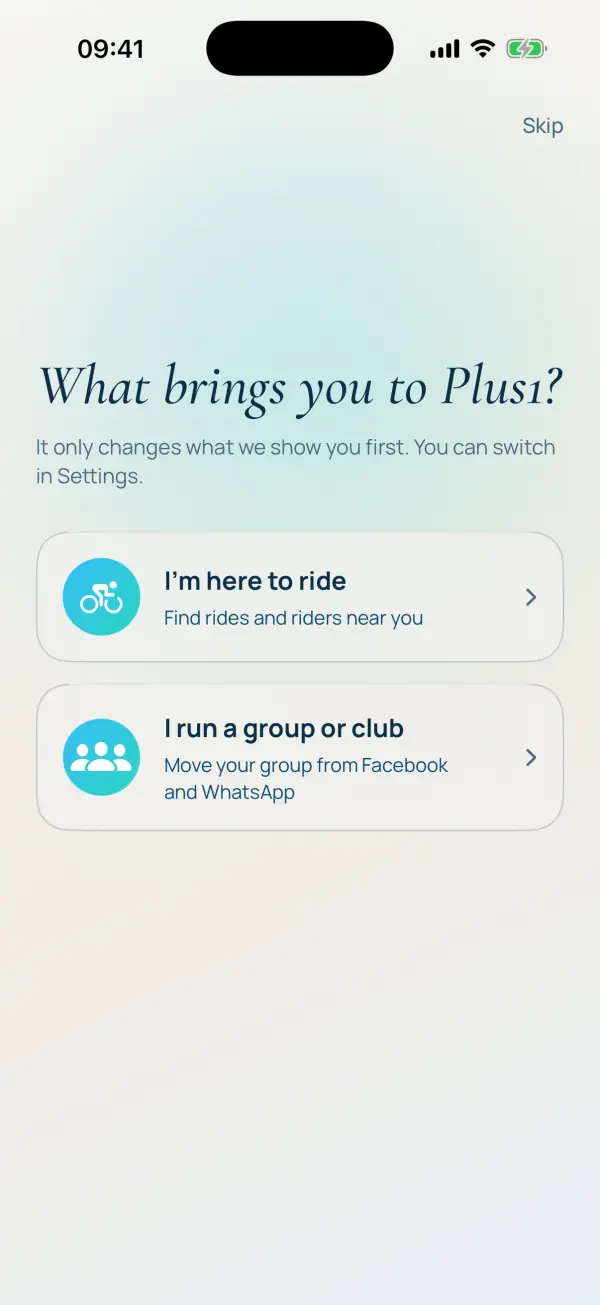
Make an account; it takes a minute. Use your real first name and surname: riders see you as first name and initial, like Rowan K., and a real name is part of why people trust a group they've never ridden with.
When Plus1 asks what brings you here, tap I run a group or club. It only changes what you see first, and takes you straight to starting your group.
Already on Plus1 as a rider? Open the Groups tab 1.10 and tap Start a group. On the version in the stores today, it's in Settings, under Community, then Groups.
step 3 start your group
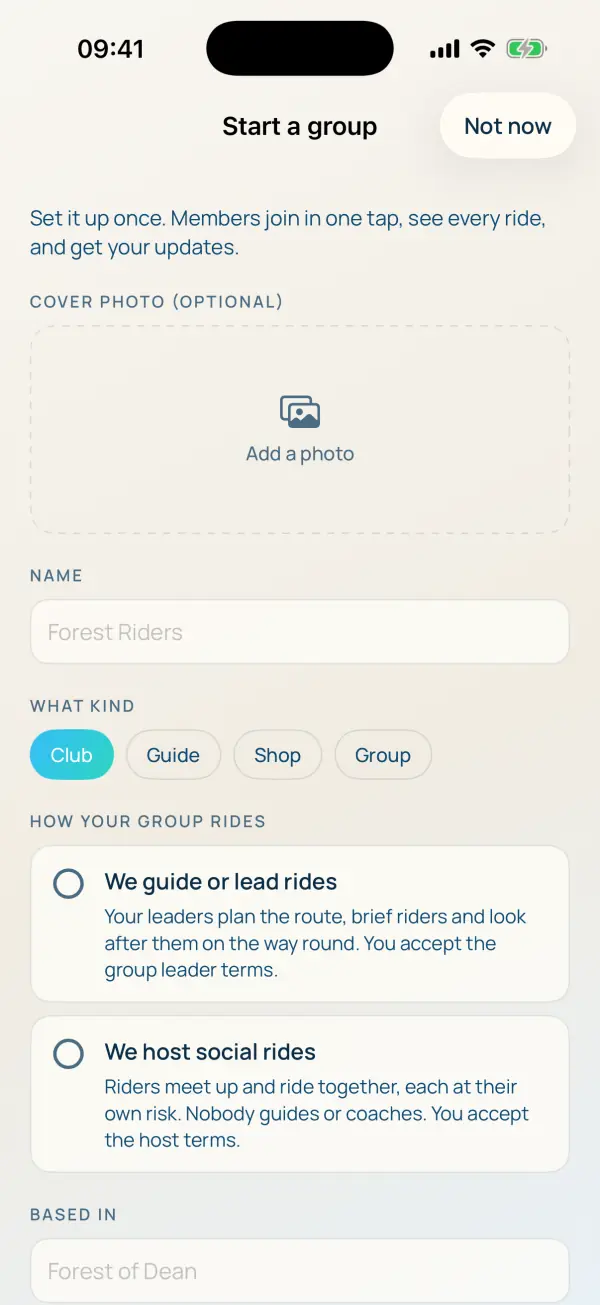
Fill in the basics:
- Name and cover photo. The name is how riders find you. A photo of your lot out riding does more than a logo.
- What kind. A club, a guide, a shop or a group. A group is anything informal: a Tuesday crew, a women's social, a bunch of mates who ride every Sunday.
- How your group rides 1.10. Whether your leaders guide rides or your group hosts social rides. This decides which terms you accept, so it has its own step below.
- Where you're based, and any other areas you ride in.
- About, your website and Instagram, and who can join: anyone in one tap, or ask to join, where a leader says yes to each rider.
Then accept the terms and add your weekly ride. We check every new group by hand before it goes live, usually within a day, and you'll get a notification when it's up. Leaders need a profile photo before a group can go live, so riders can see who they're meeting.
step 3, the easy way or let us set it up for you
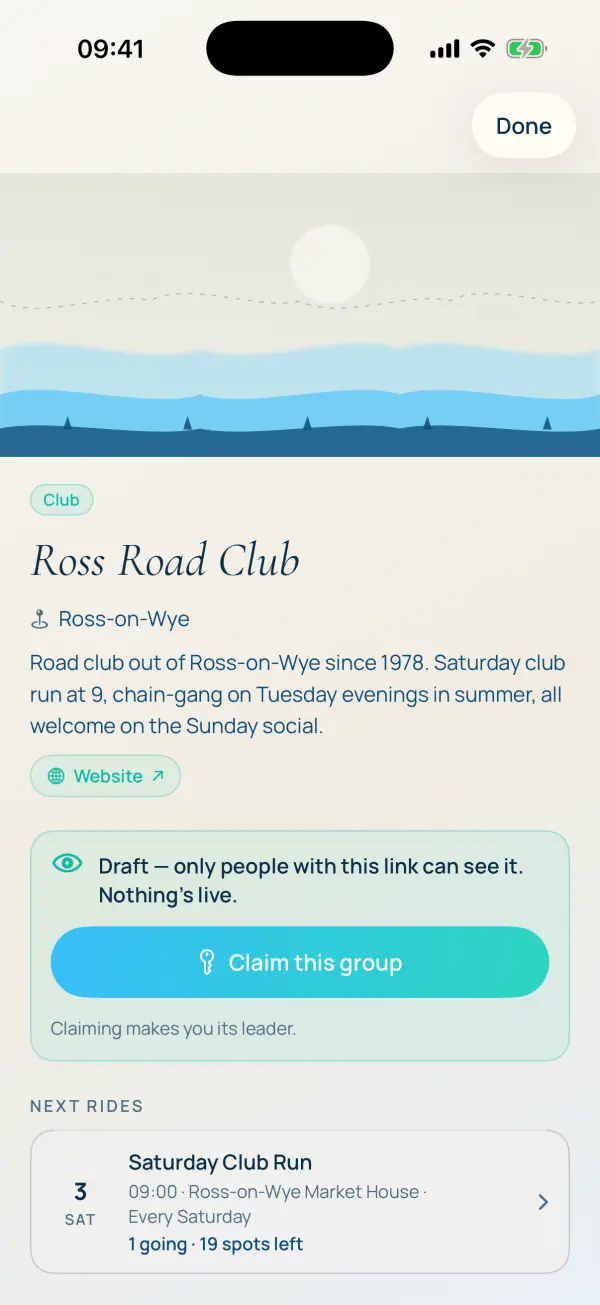
If you'd rather not type it all in, email hello@plus1app.uk with your group's name, where you ride, a link to your Facebook page or website, and your regular rides. It comes straight to me.
We'll build your group as a private draft, with your rides on it, and send you a link. Only people with the link can see it, and nothing goes live. Have a look, tell us anything that's wrong, and when you're happy, open the link in Plus1 and tap Claim this group. It's yours from then on, and we step out.
step 4 a tour of your group page
Your group page is the home for everything. The top half is what riders see: your cover, name, area, about and links, with a Verified badge for real clubs, shops and guides. Below that, as a leader, you get Leader tools.
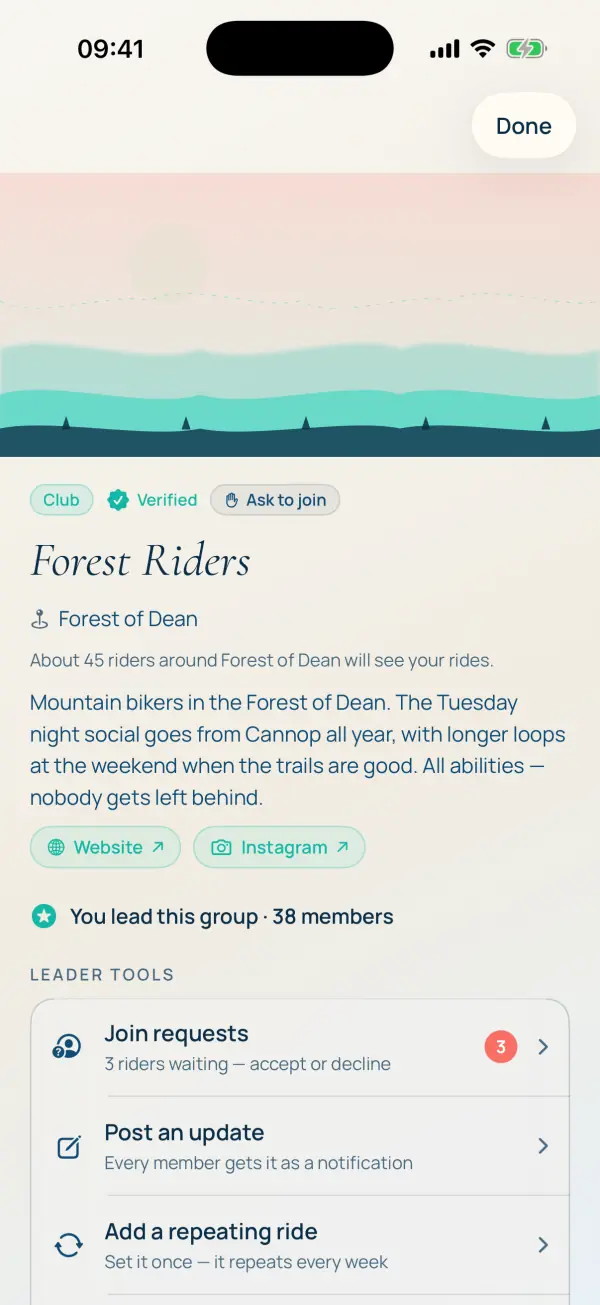
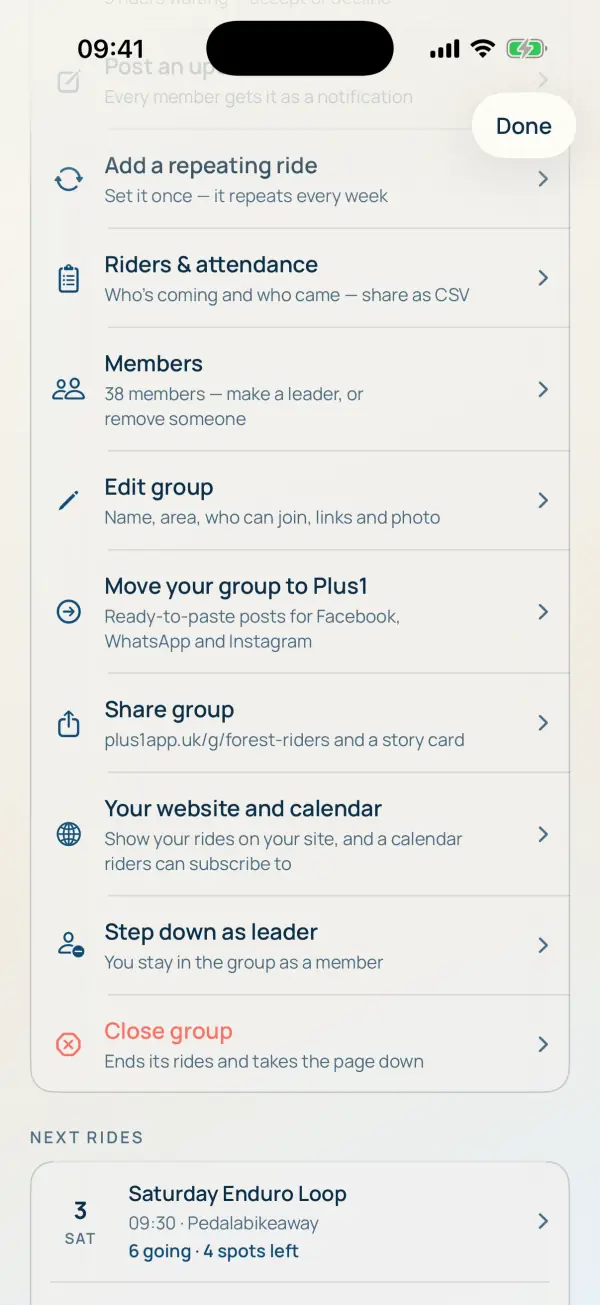
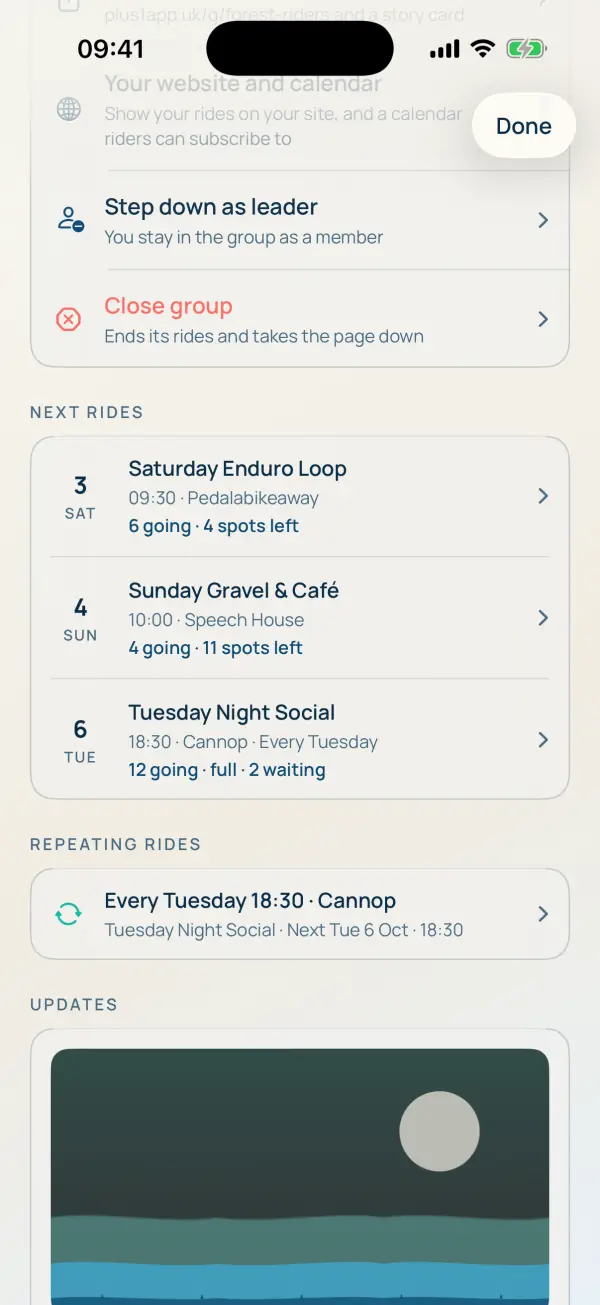
Leader tools, top to bottom:
- Join requests, if you ask riders to request to join.
- Post an update, which lands on every member's phone.
- Add a repeating ride: set it once, it repeats.
- Riders & attendance: who's coming and who came, as a spreadsheet if you need one.
- Members: make a co-leader or a ride host, or remove someone quietly.
- Edit group: name, area, who can join, links and photo.
- Move your group to Plus1: ready-made posts for Facebook, WhatsApp and Instagram.
- Share group: your link and a story card.
Further down the page are your next rides, the repeating rides, your updates and your leaders.
step 5 posting rides
There are a few ways to get a ride up, and you'll probably use all of them.
Post a ride. Start a new ride from the Rides tab, or tap Post a ride on your group in the Groups tab 1.10. Choose your group under Group so the ride shows with your group's name and on your page.
Quick post. At the top of the form is a box that says write it like you would on Facebook. Paste the post you'd normally put in the chat, or type it, and Plus1 fills in the form for you: the date and time, where, how long, the level, how many spots, and whether it repeats. Check what it picked up, change anything it got wrong, and post.
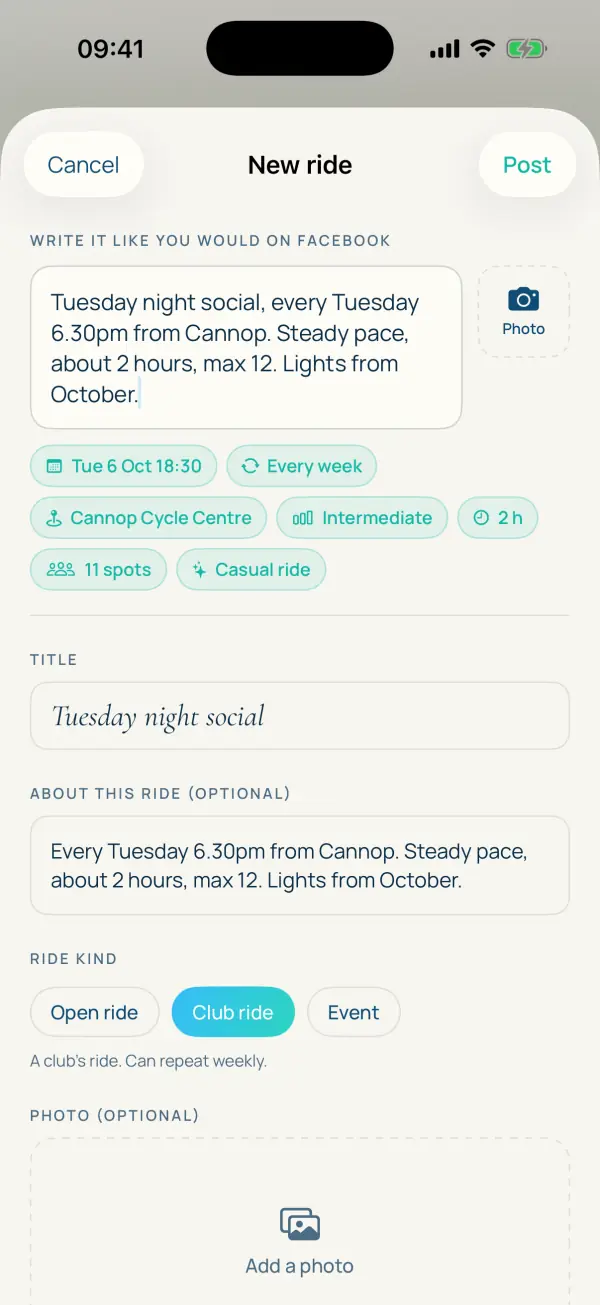
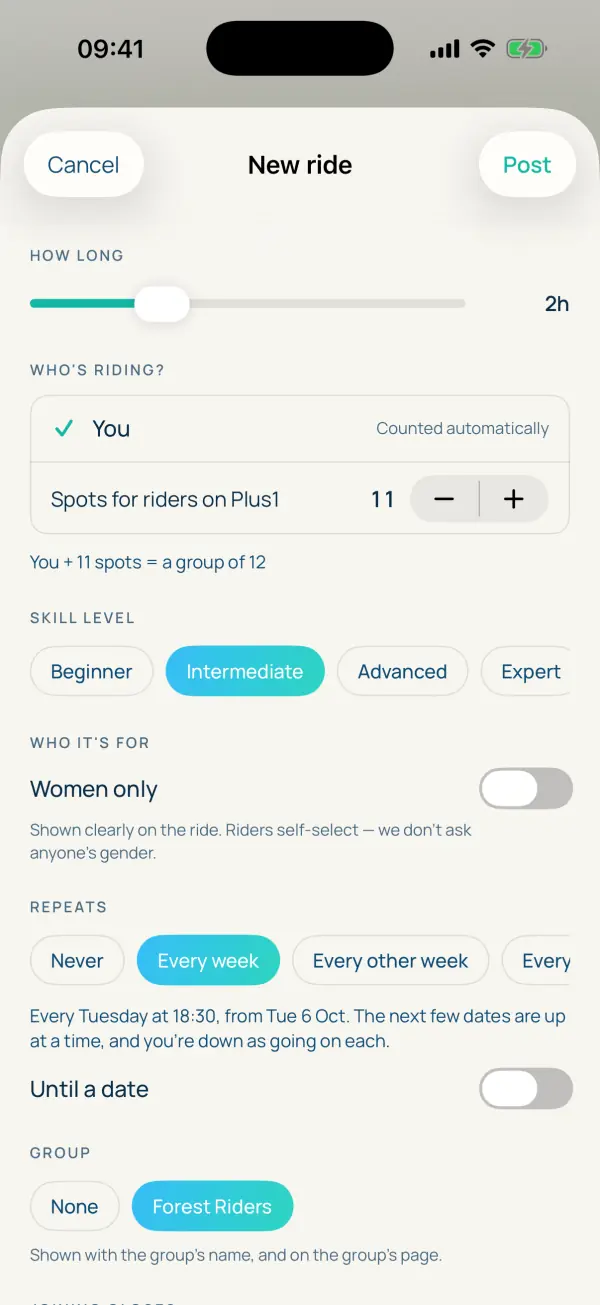
Repeats. Under Repeats, choose every week, every other week or every four weeks, with an end date if you want one. The next few dates go up at a time and you're down as going on each. Skip a date, edit the series or stop it from the ride page.
Ride again. After a one-off ride, the recap card has Ride again: it makes a new ride from the old one, same title, place and details, and offers to invite everyone who came. Change the date and post.
On every ride you can also set:
- Spots. A group of 2 to 60. When it's full, riders join a waiting list, and the first in line moves across automatically when someone drops out.
- When joining closes, from an hour to two days before the start, so you know your numbers before you leave the house.
- A waiver, in your own words or the standard wording. Riders agree to it before they can join, and you can see when each one did.
- Skill level, and women only 1.10. Shown clearly on the ride, so riders turn up to the right one.
step 6 join requests and members
If your group is ask-to-join, requests wait for you in Leader tools → Join requests, with how often each rider has ridden with you and on Plus1. Accept and they're a member, with a notification to say so. Decline and they aren't told.
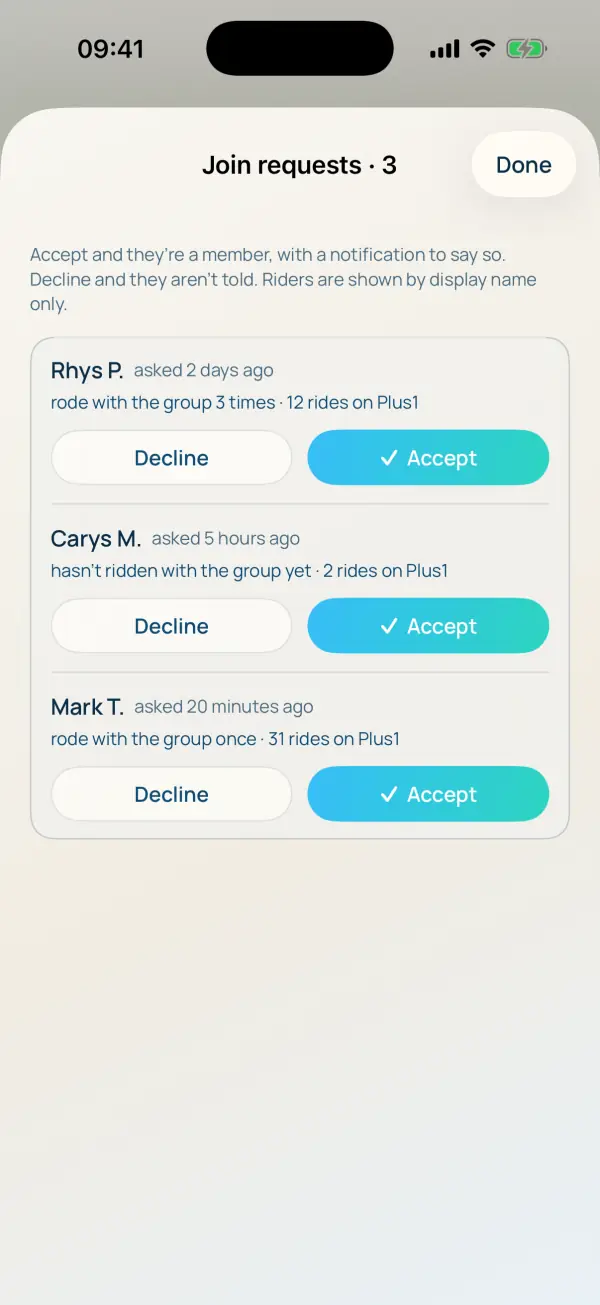
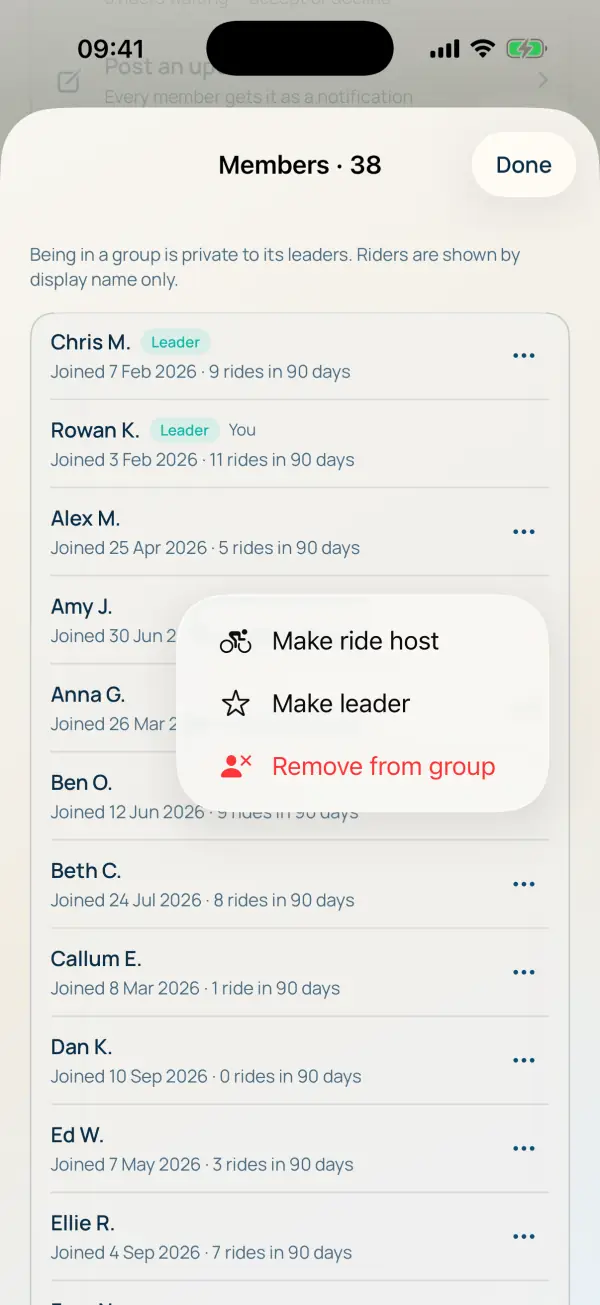
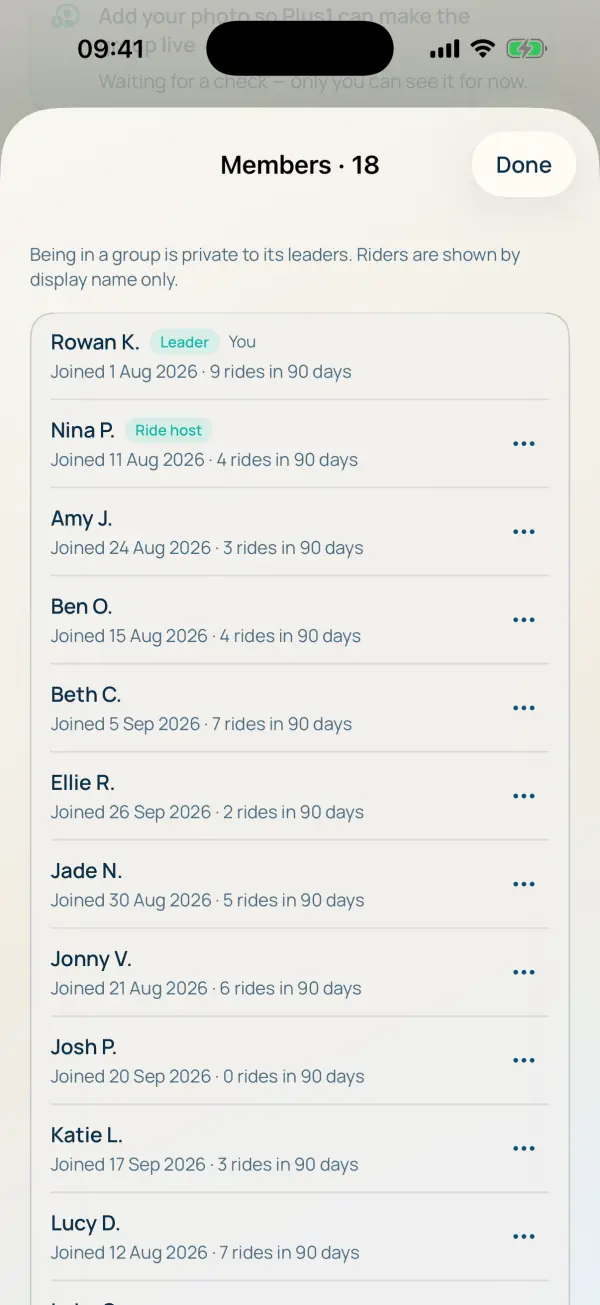
Members lists everyone, with when they joined and how many rides they've done with you in the last 90 days. Being in a group is private to its leaders, and riders show by first name and initial only. Tap ··· on anyone to make them a co-leader or a ride host, or to remove them.
Add a co-leader early. A group with two leaders keeps going when one of you is injured, busy or on holiday.
step 7 ride hosts and areas 1.10
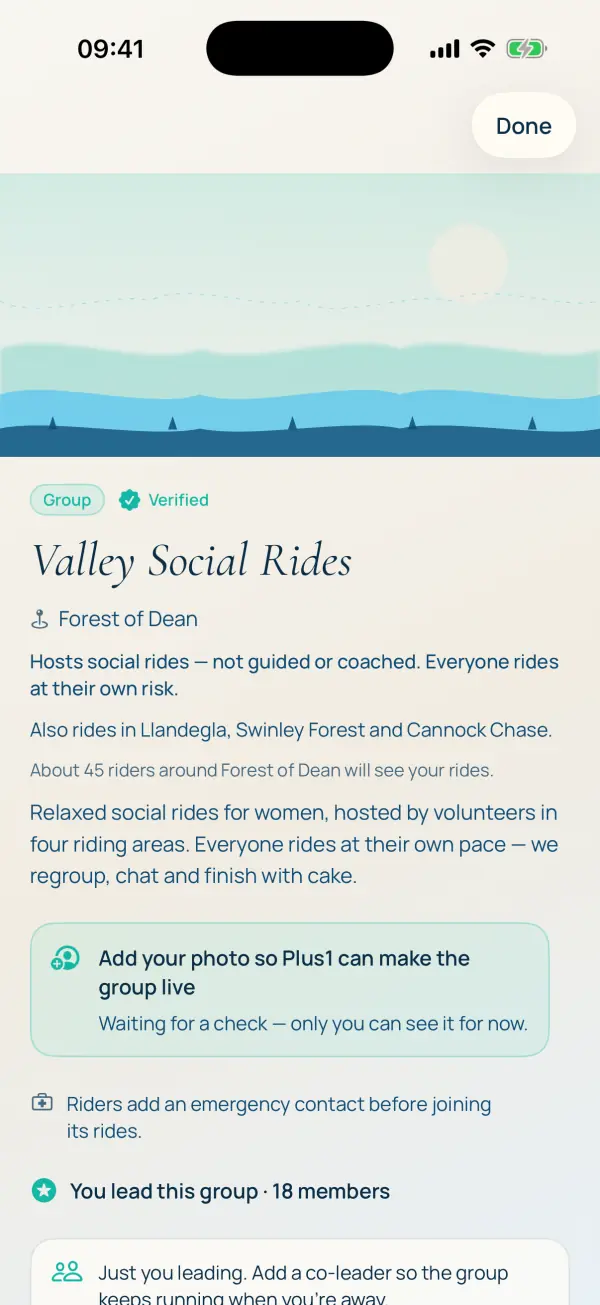
Not everyone who puts rides on needs to run the group. A ride host is a member you trust to post rides for the group. They see who's coming on their own rides and can message those riders, and that's all: no members list, no join requests, no editing the group. Leaders still see everything.
Make someone a ride host from Members, with the ··· next to their name. They'll get a notification, and they accept the group's terms before they post their first ride. Taking the role away is just as quick.
Areas. If your group rides in more than one place, add each one under Other areas in Edit group. Riders near any of them will find you, and your page says also rides in with the list.
step 8 hosting or guiding: which terms 1.10
When you start a group, you choose how it rides, and that decides which terms you and your leaders accept:
- We guide or lead rides. Your leaders plan the route, brief riders and look after them on the way round. You accept the group leader terms. This is for clubs with ride leaders, guides and coaches.
- We host social rides. Riders meet up and ride together, each at their own risk. Nobody guides or coaches. You accept the host terms. This is for social groups where someone picks a time and a place and rides along.
Pick the one that's true of how you actually ride. Guides and coaches can't use the host terms. You can switch later in Edit group; whoever switches accepts the new terms, and every other leader and ride host does before they carry on.
Either way, the rides are yours and so are the riders on them. Plus1 gives you the tools; you still lead the ride, or host it.
step 9 rider details 1.10
Three things riders can tell you, all their choice.
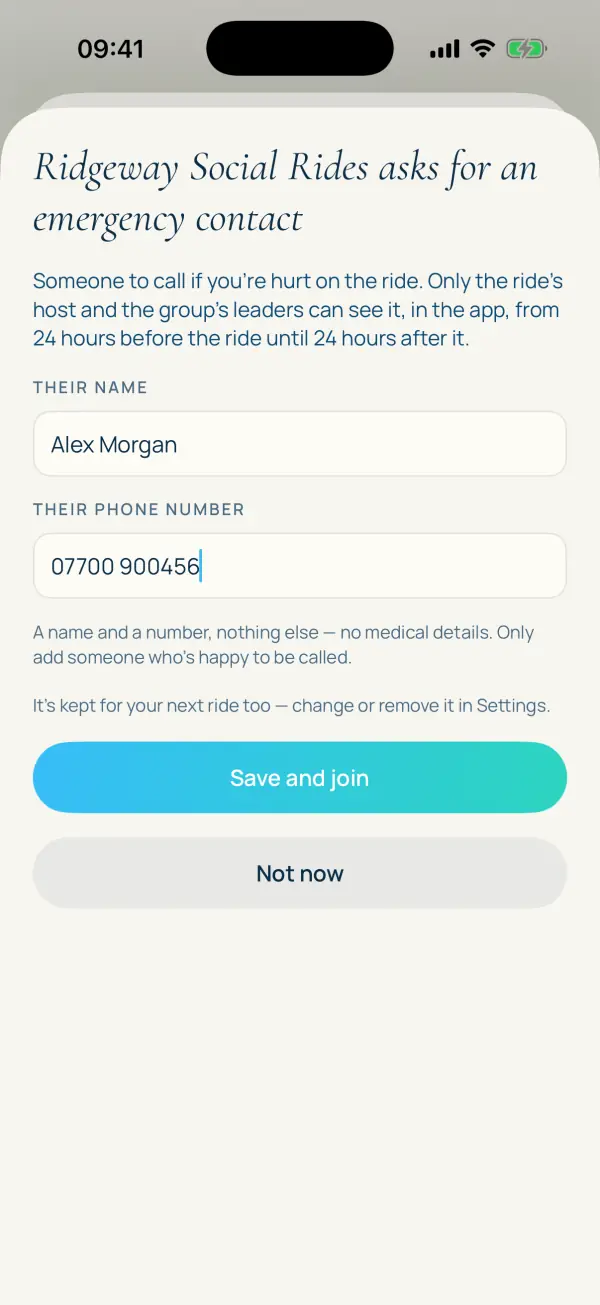
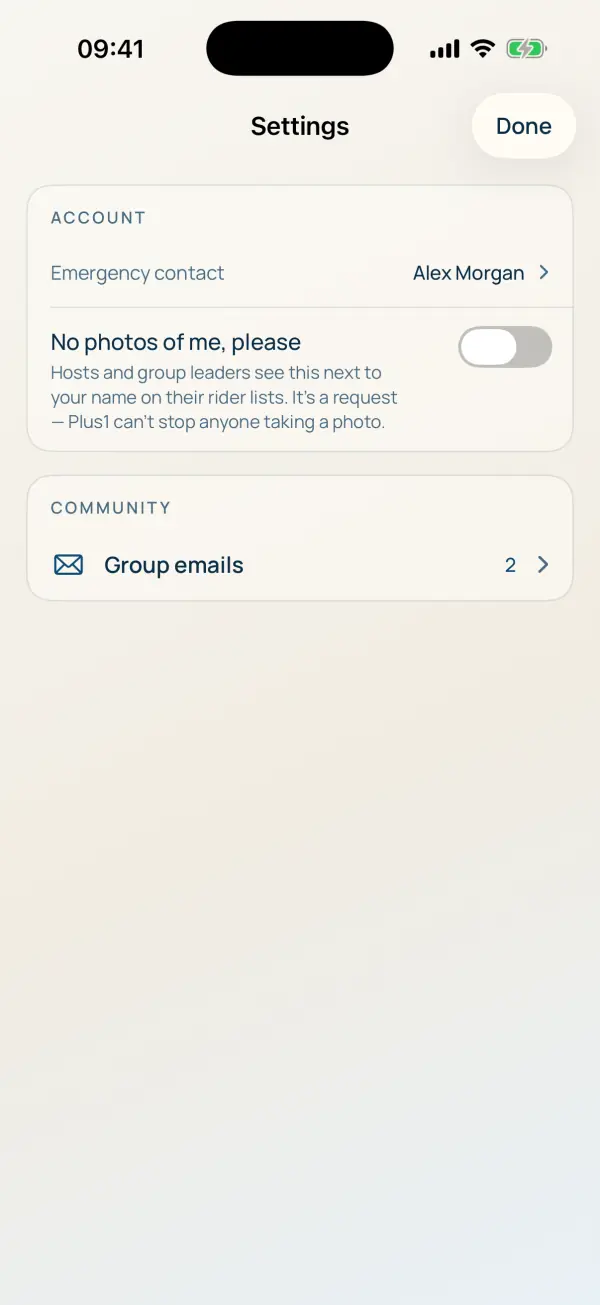
Emergency contact. A name and a phone number, nothing else, never medical details. You can ask for one in Edit group, and riders add it before they join one of your rides. Only the host and the group's leaders can see it, in the app, from 24 hours before the ride until 24 hours after, and only for riders going on that ride.
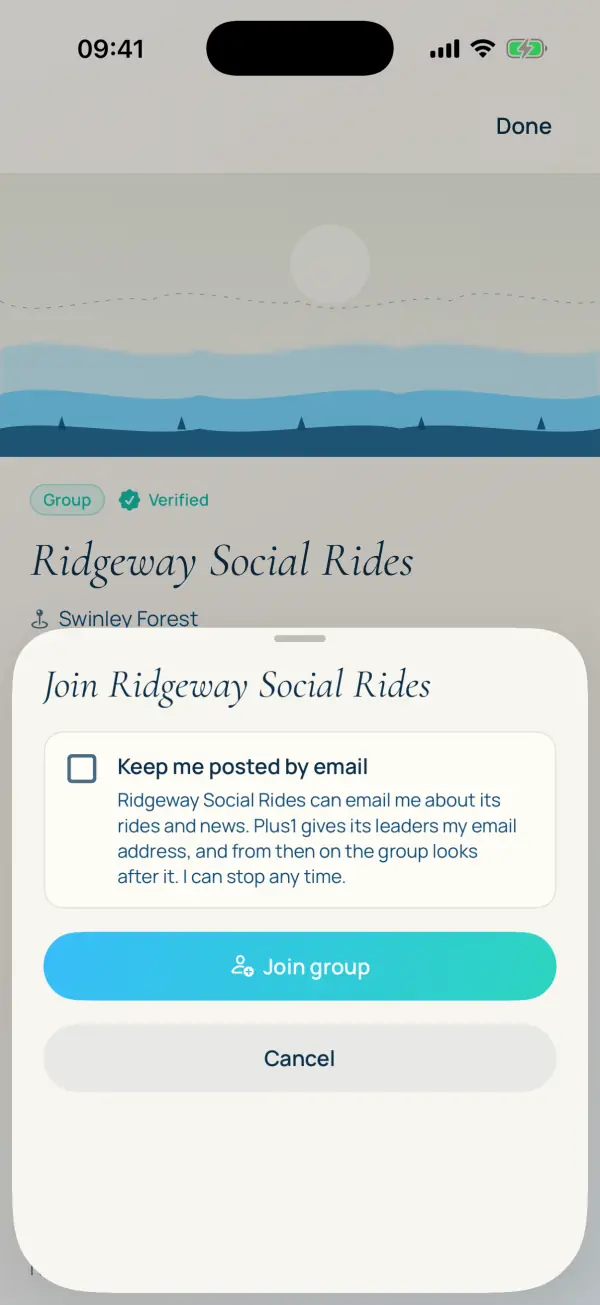
Keep me posted. You can offer an email list in Edit group. When riders join, there's a box to say yes to emails from your group. It starts unticked. Those who tick it are on a list only your leaders see, with their email addresses in your export, and they can stop any time.
No photos of me, please. A rider can switch this on in Settings, and it shows next to their name on your rider list, so whoever's taking pictures knows. It's a request: Plus1 can't stop anyone taking a photo, but you can.
step 10 who's coming, and the export
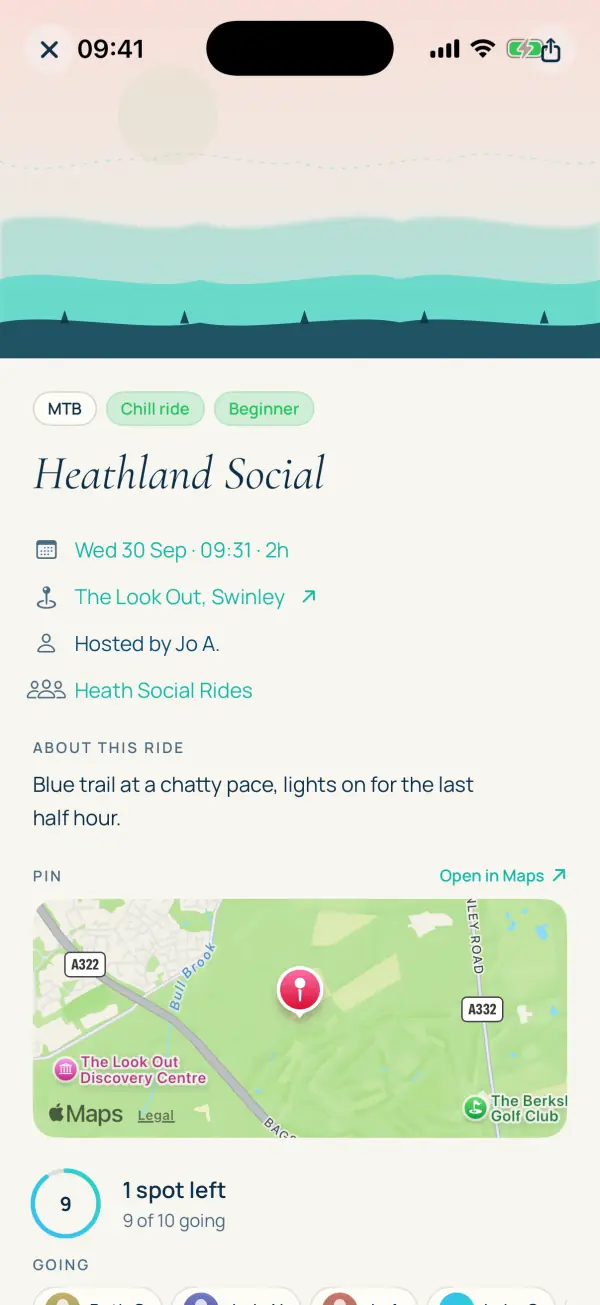
On any ride, the Going list shows who's coming. Riders who aren't sure yet can tap Maybe 1.10: maybes never count as going, and only the host and the group's leaders see them. Riders can ask questions on the ride before they commit, too.
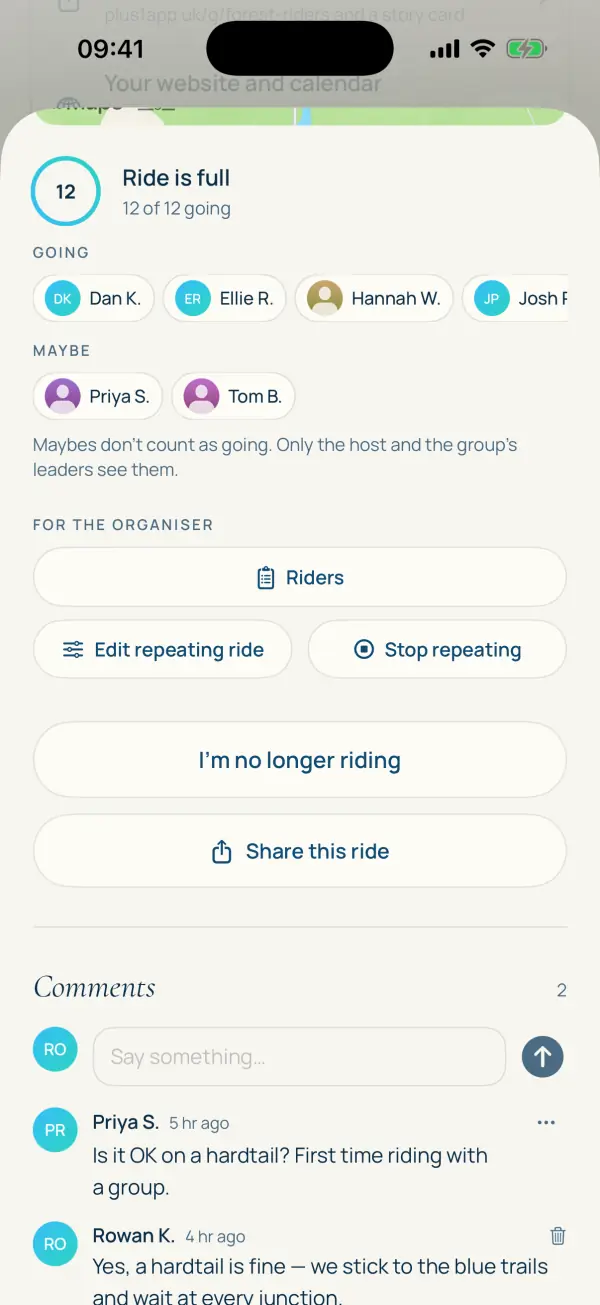
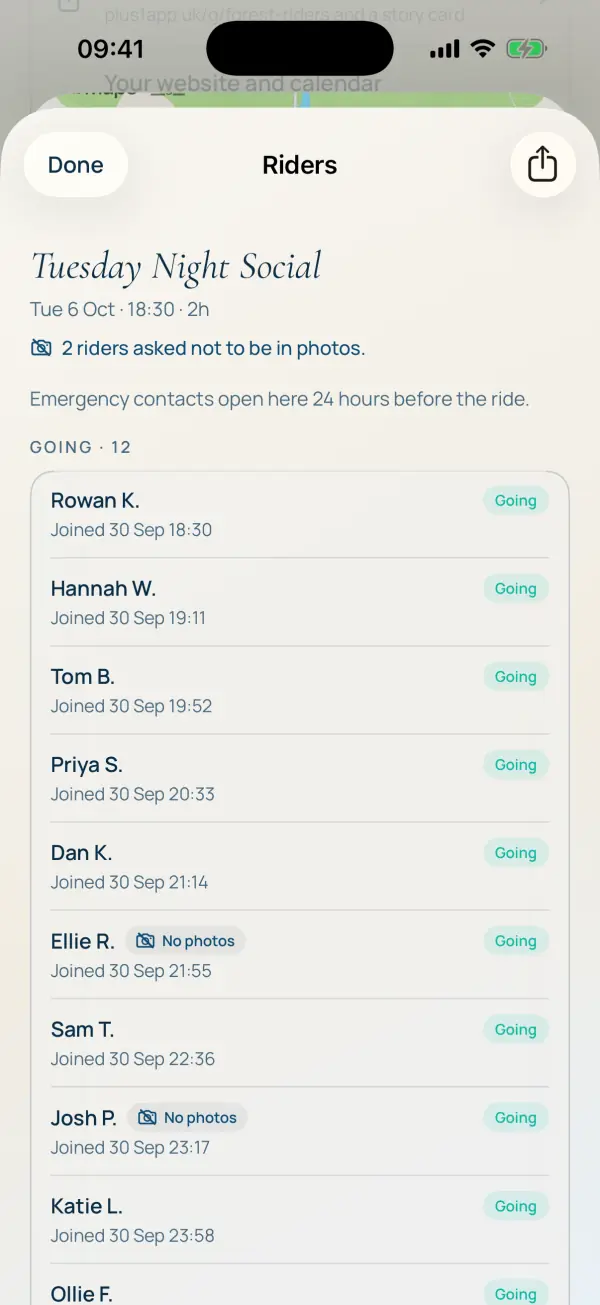
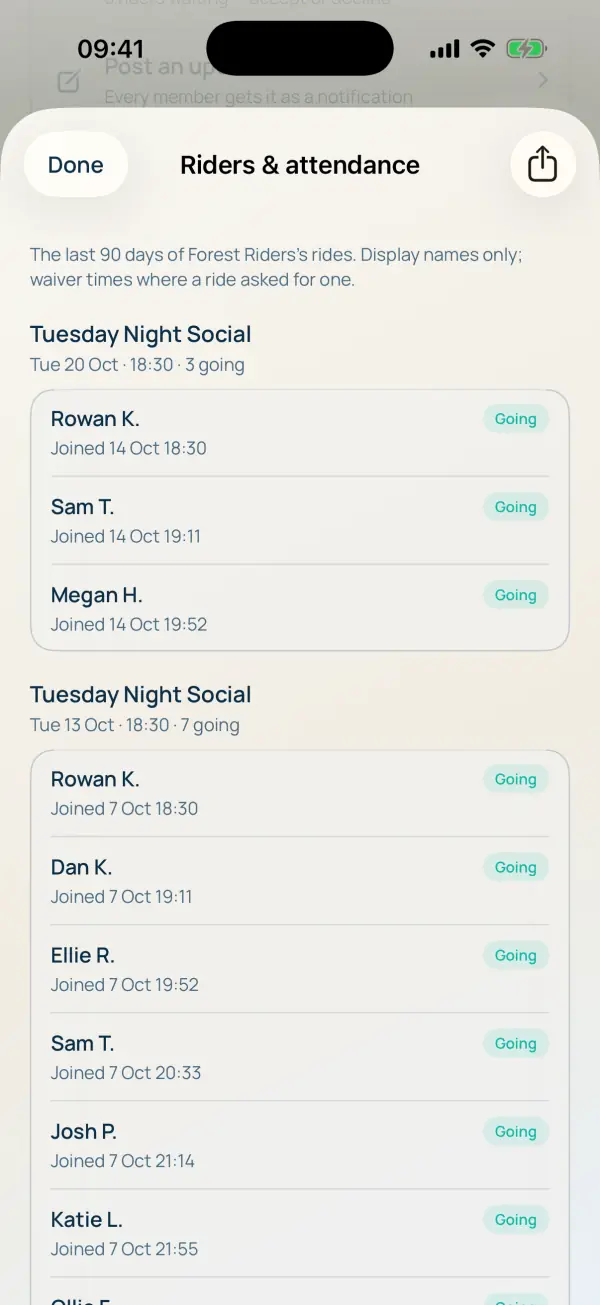
Tap Riders under For the organiser for that ride's list: who's going and waiting, when they joined, when they agreed your waiver, who'd rather not be photographed, and, from the day before, their emergency contacts.
For the whole group, Leader tools → Riders & attendance shows the last 90 days of rides. Tap the share button at the top to export it as a spreadsheet (CSV) for your register, your insurer or your committee.
step 11 posting an update
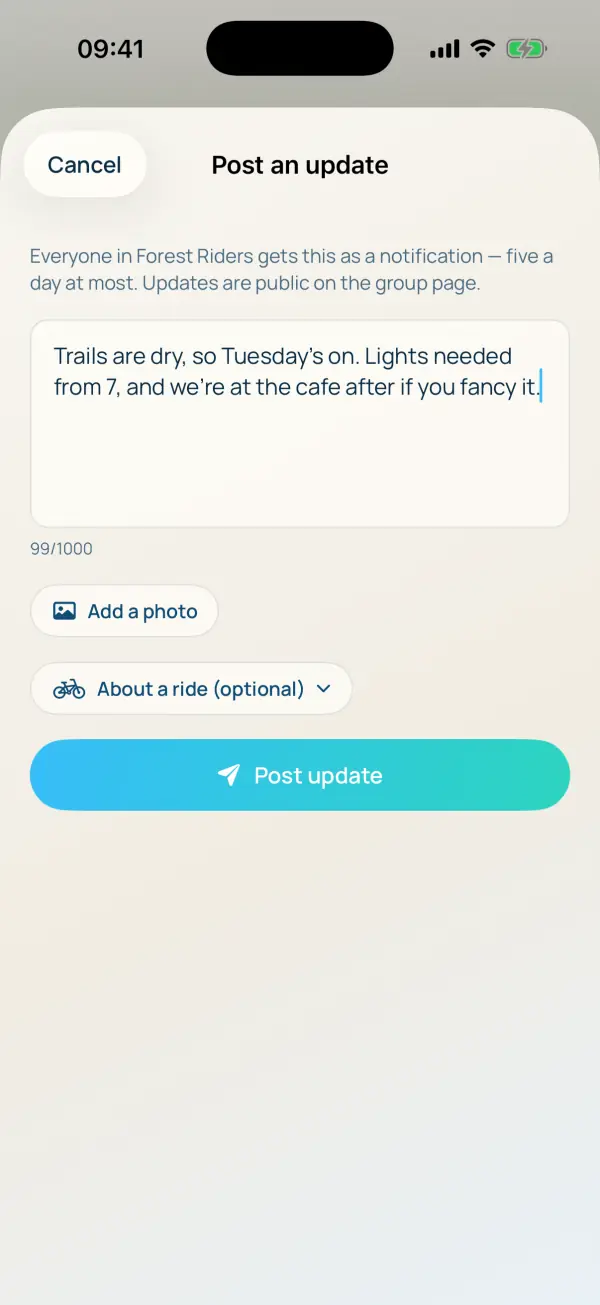
Leader tools → Post an update. Write a line, add a photo if you like, and pick the ride it's about if there is one. Every member gets it as a notification, and it stays on your group page.
Trail closed, meeting point moved, lights needed, pub after: this is where it goes. Members get five updates a day at most, so nobody's phone goes mad.
step 12 sharing your group link
Your group has its own address: plus1app.uk/g/your-group. Anyone can open it, app or no app, and see your next rides with an add-to-calendar button. It's the link to put everywhere.
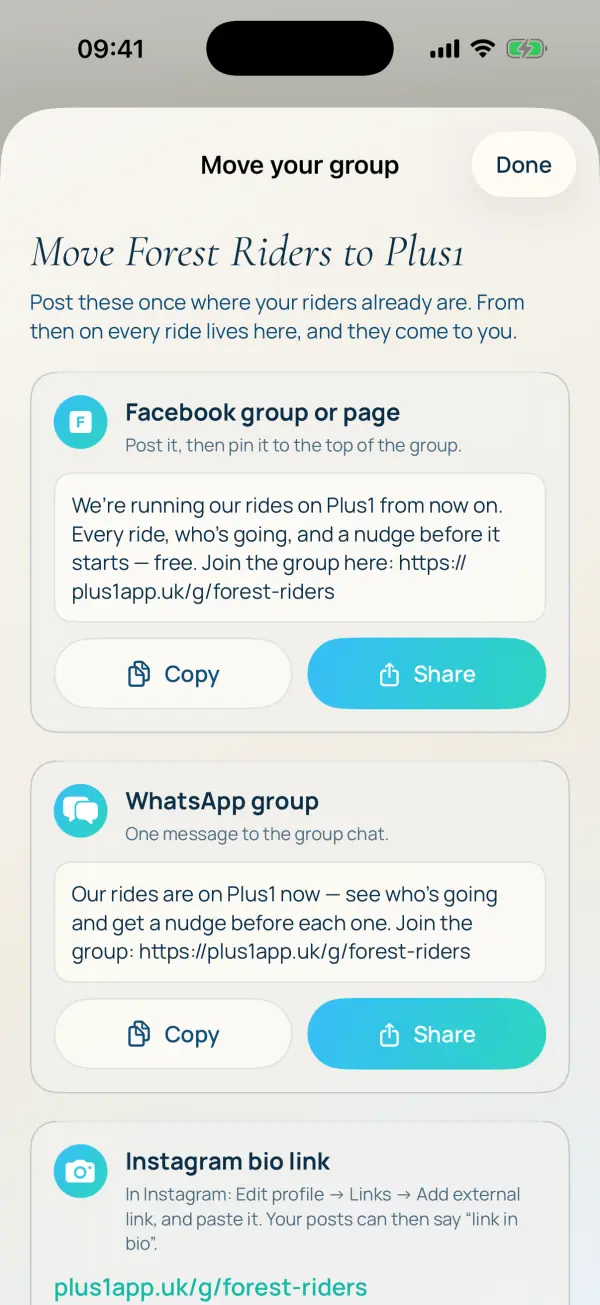
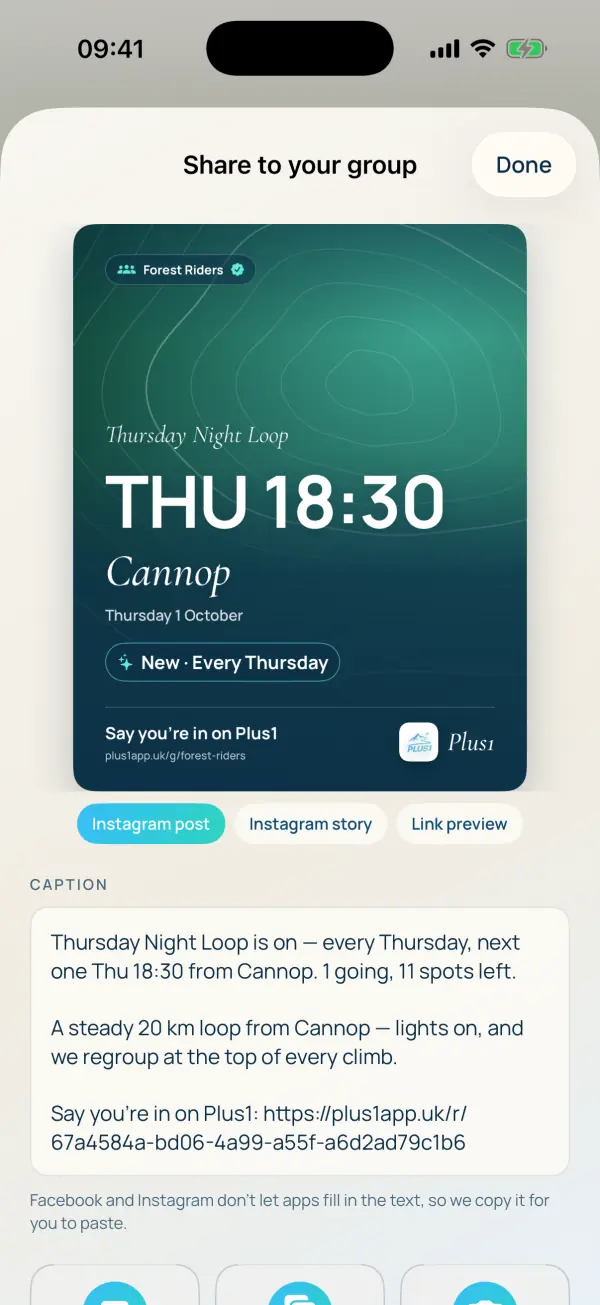
- Move your group to Plus1 (in Leader tools) has a post for your Facebook group or page, one for your WhatsApp chat, and the link for your Instagram bio. Copy, paste, done.
- Share this ride, on any ride, makes a card for Instagram, a story, or a link preview for WhatsApp, with the caption written for you.
- Share group gives you the link and a story card for the group itself.
step 13 after the ride 1.10
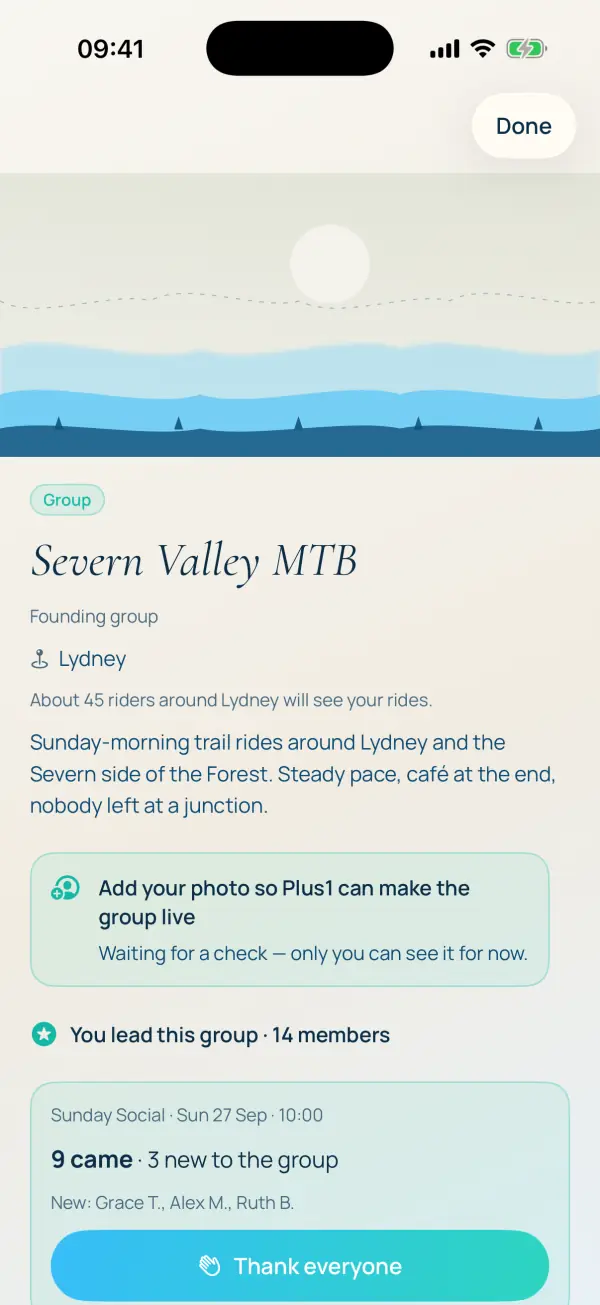
Once a ride's done, your group page shows how many came and who was new, with a Thank everyone button that sends one message to everyone who rode.
Your riders get What next: your group's next rides near them, the people they rode with to add as mates, and anything else on nearby. It's how a first ride turns into a second one.
moving over from Facebook or WhatsApp
You don't have to move everyone at once, and you shouldn't try. This is what works:
- Keep your group going. Don't close the Facebook group or leave the WhatsApp chat. That's where your riders are today, and it's how they'll find out about Plus1.
- Post rides on Plus1 first. Every ride goes on Plus1, then you share the link into your chat: Saturday's up on Plus1, say you're in here. The chat stays for the chat. The ride, who's coming and the waiting list live on Plus1.
- Pin your group link. Use the post from Move your group to Plus1, and pin it to the top of your Facebook group and your WhatsApp chat. Put plus1app.uk/g/your-group in your Instagram bio.
- Move people over gradually. A few riders will join straight away. The rest follow when they see the list filling up and realise that's where the places are. When most of your rides fill on Plus1, the chat can go back to being banter and photos.
Give it a few weeks. The groups that move fastest are the ones where the leader only ever says it's on Plus1.
your website and calendar
New in 1.10, so you don't have to type a ride twice:
- Your rides on your website 1.10 In Leader tools, tap Your website and calendar. Copy the upcoming-rides box into your own website once, and every ride you post in Plus1 shows there. There's also a calendar link riders can subscribe to, so new rides land in their calendar on their own. It works once your group is live.
- Quick post from a link 1.10 Paste the link to an event page on your website into Quick post and tap Read the ride from this page. Plus1 reads the title, date and time and fills in the ride for you to check.
If you want to talk any of this through, email hello@plus1app.uk. It comes straight to me.
Questions leaders ask
Do I have to close our Facebook group or WhatsApp chat?
No, and we'd suggest you don't. Keep it going while people move across. Post each ride on Plus1 first and share the link into the chat, and the group moves at its own pace.
Can you set the group up for me?
Yes. Email hello@plus1app.uk with your group's name, where you ride and your regular rides. We'll build it as a private draft with your rides on it and send you a link. Have a look, and if you're happy, tap Claim this group and it's yours.
Why don't I see some of these screens?
Some of them are in Plus1 1.10, the update coming to the App Store and Google Play soon. They're marked 1.10 in this guide. Everything else is in the version you can download today.
Do my riders need the app?
To join a ride, yes. To see your group, no: anyone can open your group's page at plus1app.uk/g/your-group and see your next rides, with add-to-calendar.